

This is how to create a website shortcut on to your desktop in Windows 10 Home (video):
Drag and drop from any web browser
When you open your browser (i.e. Safari, Firefox, Google Chrome), you will see a site icon or a security icon next to the web address in the URL bar (sometimes a padlock). It will look something like this:
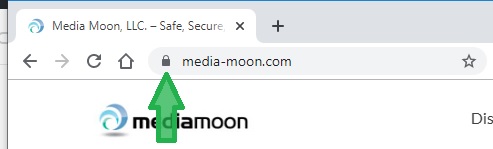
Click the logo or security padlock icon and drag it onto your desktop. From there, an icon will appear on your desktop.
Double-clicking on icon will take you straight to the URL that you copied from your browser.
If you want to rename the shortcut, click on it once to highlight the entire icon. Then when it’s highlighted, click on the text of the shortcut to only highlight the text.
At that point, you’ll be able to change the text for the shortcut. After you’ve finished entering your text, press your “Enter” key on your keyboard or click away from the shortcut icon.
Done… That’s it.